Warning: opendir(/srv/users/amt/apps/amt2/public/wp-content/mu-plugins): failed to open dir: Permission denied in /srv/users/amt/apps/amt2/public/wp-includes/load.php on line 981

Warning: Cannot modify header information - headers already sent by (output started at /srv/users/amt/apps/amt2/public/wp-includes/load.php:981) in /srv/users/amt/apps/amt2/public/wp-includes/feed-rss2.php on line 8
Android Tutorials – AllMobileTools-Tutorials, Stock Firmware, Tools, USB Drivers https://www.allmobiletools.net How To Tutorials, Stock Firmware, Tools, USB Drivers Fri, 08 Jan 2021 13:25:30 +0000 en-US hourly 1 https://wordpress.org/?v=6.9.4 https://www.allmobiletools.net/wp-content/uploads/2019/12/cropped-favicon-32x32.png Android Tutorials – AllMobileTools-Tutorials, Stock Firmware, Tools, USB Drivers https://www.allmobiletools.net 32 32 How To Unlock Pattern, PIN, Password Without Factory Reset or Without Losing Data On Android https://www.allmobiletools.net/how-to-unlock-pattern-pin-password/ https://www.allmobiletools.net/how-to-unlock-pattern-pin-password/#respond Tue, 01 Dec 2020 16:11:00 +0000 http://beta.allmobiletools.net/2017/07/26/how-to-unlock-pattern-pin-password-without-factory-reset-or-without-losing-data-on-android/ The post How To Unlock Pattern, PIN, Password Without Factory Reset or Without Losing Data On Android appeared first on AllMobileTools-Tutorials, Stock Firmware, Tools, USB Drivers.

]]>
Hello, Today we are going to discuss a very important topic regarding android devices. Every android smartphone or tablet user uses a pattern, Pin, or password to lock their device. When you entering the wrong Pattern, Pin, or password too many times. Then your device will be locked. There are many ways to recover or bypass your device password. But today we are going to discuss How To Bypass Android Pin, Password Without Losing Data: So let’s get started how to do this?  

How To Unlock Pattern, PIN, Password Without Factory Reset or Without Losing Data On Android

Required Files:

  • You need to Download Aroma File Manager. Download Aroma File Manager HERE
  • SD Card for your Device.
  • Your Android smartphone or tablet either locked by pattern lock or Password Lock.

How To Unlock Pattern, PIN, Password Without Factory Reset or Without Losing Data

  • Download Aroma File Manager and copy it to your SD Card, then insert the SD Card into your locked android smartphone or tablet.
  • Now open Stock Recovery Mode. You can open Stock Recovery Mode by reboot your device and pressing the Power button and Volume down key as well. Various phones have different methods to open Stock Recovery Mode. If you face any error, then search on Google.
  • After run your device in Stock Recovery Mode use Volume Up and Volume Down key to scroll up and down. You can select an option using the middle button.
  • Now click on the “Install ZIP from SD Card” option and give the path to install Aroma File Manager from your SD Card.
  • When Aroma File Manager successfully installed. It will open in recovery Mode.
  • Navigate the Setting from Aroma File Manager>>Go to the bottom and click on the option “Automount all devices on start” and then exit.
  • Go to the “Install ZIP from SD Card” option again, and give the path to install Aroma File Manager from the SD card.
  • After installing, Aroma File Manager Opened again.
  • Now navigate to Data Folder >> System Folder and find >> “gesture. key” or “password.key” for pattern lock or password lock respectively.
  • Delete that one file and then exit the aroma file manager and reboot your Android device. After rebooting, you will notice that password or pattern lock is not removed. But don’t worry draw any pattern and you will open your android device but remember or note that pattern because it will be saved.   Enjoy,

The post How To Unlock Pattern, PIN, Password Without Factory Reset or Without Losing Data On Android appeared first on AllMobileTools-Tutorials, Stock Firmware, Tools, USB Drivers.

]]>
https://www.allmobiletools.net/how-to-unlock-pattern-pin-password/feed/ 0
How To Hack Android Games Using Game GameGuardian APK https://www.allmobiletools.net/hack-android-games-using-game-gameguardian-apk/ Sat, 30 Sep 2017 05:02:48 +0000 https://allmobiletools.net/?p=1707 The post How To Hack Android Games Using Game GameGuardian APK appeared first on AllMobileTools-Tutorials, Stock Firmware, Tools, USB Drivers.

]]>
How To USE GameGuardian APK?

Hello, folks. Today I am going to shed light on the topic of hacking of Android games. You would have already read so much of articles regarding the hacking of the Android games, but believe me, this article will truly make you hack any android video games. I am not going to claim that, this topic will make you a programmer, but with using some of the application you can fulfill your job of hacking any video game. Plus, this article is for those geeks who want to temper the game score, game coins and games steps, this post will not for those who want to hack online games, this will be for those who are conscious about hacking offline games.

How to hack a game using Game Guardian Application:

So, let’s start the real job, you are going to hack the offline games, especially those games which involve the single player. If you are finding it difficult to earn coins, to complete the game or you’re not skipping the step to cross the game. You should stick in here to read the next few lines.

What you should gather:

  • As I have mentioned in the starting lines of my post, this would not hack online games like clash of clans and Tekken. The offline games easily can be conquered via using the application, you need to download.
  • First you are required to root your device, you can pick any of the best rooting application, and instead, you can find one from the website you are reading.
  • You should download Game Guardian APK, from the link below; we already have given you a download link you can tap on the button to get the file.
  • You should check the unknown sources button, as you are downloading the application from our website, the Google Play Store would not allow you to install the application on Android OS. So, check the unknown sources button and then install the Game guardian APK on your device.
  • If would take some time, bear with that, and allow the installation.
  • Now, after installing this on your device, you should leave the application there, and open the game which you want to hack.
  • You play some game, and earn some scores, like in initial stage, try to make scores which should not be complete digits like 456.
  • Now, open the screen of Game Guardian APK, you will see a search bar over there, tap on the search bar and put the number or score you have recently made, or what you want to change.
  • Put those numbers there, and tap the search button, now, carefully look at the results. If the results are more than one, you should play the game again, earn or make some different digits of the score and then press the button of search put that number and search, the result should be one.
  • Now, if you have found the only digit, the scores what you have made now, then change the digits to your desired digits or numbers.
  • You will see after this on your game screen, the digits of score or coins have changed already.
  • Now, enjoy the limitless coins and scores, you can have snaps of those scores you made, an unbelievable number and show to your friends.

This Game Guardian APK is a really wonderful application, which can make you change the scores of your games.

You can download this application from our servers; you can tap the download button and get the download link. If the link is not working, you should comment down in the section, so that our team can fix the issue as soon as possible.

The post How To Hack Android Games Using Game GameGuardian APK appeared first on AllMobileTools-Tutorials, Stock Firmware, Tools, USB Drivers.

]]>
How To Easily Root Samsung Galaxy S4 SCH-1545 https://www.allmobiletools.net/easily-root-samsung-galaxy-s4-sch-1545/ Tue, 19 Sep 2017 04:44:01 +0000 https://allmobiletools.net/?p=1659 The post How To Easily Root Samsung Galaxy S4 SCH-1545 appeared first on AllMobileTools-Tutorials, Stock Firmware, Tools, USB Drivers.

]]>

Rooting of a smartphone is like to unlock the operating system of the phone, and to make it able to install the desired applications, remove unwanted and default settings, to install the applications which were not able to install the previous version. The concept of rooting is taken from the Linux operating system. In Linux also users have the authority to change and to customize the software in the way he/she want. So, in a simple way rooting meaning getting Super use in your device, there is thousands of the Android operating system nowadays available, every Android OS has its own way to Root a phone. But, here we are going to tell you How to Root Samsung Galaxy S4 SCH-1545. So, you need to root your Samsung mobile phone.

Gather the equipment:

The equipment that required winning this battle is?

1) One computer installed Windows or Mac operating system, with proper USB drivers, which could recognize your mobile phone brand

2) One USB data cable, which will be good if you have the genuine USB data cable of your mobile phone which you are going to root.

3) Root package, this is the only thing you need to download accordingly your mobile phone brand and model

4) One software ODIN that will help in rooting your device

5) And battery more than 30% charged

So, these were the things you need to gather before rooting of your smartphone.

How to root Samsung Galaxy smartphone:

As I mentioned, the only thing you need to download is Root package. The root package specific to your smartphone, to download this you need to visit the official CF auto root website. On this website, you will find almost all root packages of all Samsung brands about 400. You need to know the model of your phone and OS.

How to know the model and OS of the phone:

  • To know the model of the phone and the OS, you need to tap on the setting of your phone. Then tap on More, and about of the device. From that page, you will see the model of the phone and OS, in my case, I am going to download the root package for Samsung Galaxy S4 SCH-1545, and my OS is 5.01.
  • Now you put the model number of your phone in the search bar of CF auto root package website. And download the root package; it will be in zipped form, so unzip the file to the desktop.
  • Now, the next step is to install ODIN software, this software is also included in download folder which you had unzipped. So, double click on that software, and allow all the permission required to install the software on your computer. This software will also install the required USB driver to connect Android device if not available and installed on your computer.
  • Now, launch the ODIN software, and the in front of a box just tap once.
  • Now, you need to prepare your Samsung device ready to root by putting the device in the download mode.
  • For this, first shut down your phone completely, and then press the home button+ Volume down button+ power button simultaneously. After that, a screen will appear there press the volume up button after seeing this screen. Now, your mobile phone has gone into download mode, you are going to root your device now.
  • Now, connect your device with a data cable which you arranged before, one point with the device and another point with the system in which you already have arranged everything.
  • When you will connect the device to the ODIN it will automatically recognize your phone, now you got the option of Start, reset and exit.
  • Press the start button to root your Samsung Galaxy S4 SCH-1545.
  • Do not play with your phone while this is in rooting mode, otherwise, your phone can be bricked while rooting process.
  • Within some minutes, you will see some reading appear on your mobile phone screen. And after that, you will see your phone start launching the OS. Now, you can see your rooted phone with Super use option there.
  • You have rooted your phone successfully, and you can check it with any third party software like Root Checker Basic, which will tell you either your phone has been rooted successfully or not.

This was all about rooting of the Root Samsung Galaxy S4 SCH-1545, if you are finding it difficult to follow any step, you can comment down in the comment section.

The post How To Easily Root Samsung Galaxy S4 SCH-1545 appeared first on AllMobileTools-Tutorials, Stock Firmware, Tools, USB Drivers.

]]>
How To Recover Lost Data From Android Internal Memory & SD Card Easily https://www.allmobiletools.net/how-to-recover-lost-data-from-android/ https://www.allmobiletools.net/how-to-recover-lost-data-from-android/#respond Tue, 15 Aug 2017 04:12:00 +0000 The post How To Recover Lost Data From Android Internal Memory & SD Card Easily appeared first on AllMobileTools-Tutorials, Stock Firmware, Tools, USB Drivers.

]]>

Smartphones have become the vital part of our lives, everyone using smartphones, as they are the best companion. If you are feeling bored or need something to search on the internet, this gadget is always you. We rely on our smartphones every single day. If some day, you found, your all data has lost, that was in smartphones. It can be different reasons for losing data, like if your phone has smashed, or broken screen, black screen, or due to some unknown clicks. We are here to guide you how you can recover your all lost data. You can retrieve all of your contacts, messages, history, files, Audio, videos and even send and receive pictures as well. Follow our post; do not rush around to get full information regarding recovering lost data from internal memory of the Android phone.
How To Recover Lost Data From Android Internal Memory & SD Card Easily
Recover Deleted Data From Android Mobile Phone:

To search a tool for recovering your deleted data is a difficult task when you will start the search, there would be dozens of application and tools. It would become more difficult to select one out of all. To use all of them one by one, will be time-consuming, I want to share my personal favorite tool with you. Android Data Recovery tool is my personal favorite, and very efficient in retrieving all types of deleted files out of your Android internal memory. Though Android phones are not built in method to recover internal data, somehow, the process of saving data of Android is same like Computers. 
Step1: Download and install:
You can download the Android data recovery utility from here, install it on your computer or laptop and connect your computer to your Mobile phone, on which you want to recover your lost files.
Before doing this please enable USB debugging in your Smartphone, otherwise, your computer will not recognize your device.
Step 2: Scan Android phone:

When you will connect your phone to that data recovery software, it will automatically detect your phone. Click on Ok when it asks the Allow USB debugging, and click on start button to start the scanning, it will take some time to scan of your phone, be patient, and also take care of your battery, if the battery is not more than 20%, connect it to the charger.
Step 3: Select Type of data:

Now, it will ask you, which type of data you want to recover, for example, there are forms of data, Audios, videos, call history, contacts, gallery, like that. You can select any one type if you want to fetch it quickly, and if you want to recover all type of data then click on next button.
Step 4: Select files:

Now, it will give you all of your deleted data, but still, you can select the data which you want to recover, for example, there are thousands of images, you can select one by one and all to retrieve. Same with videos and Audio files select them one by one or select the all given. When you click on the recover, it will start recovering of your data, though if your files are heavy, it can take hours to recover. But, it will work to retrieve all of your deleted data.
This was the little guide of How to recover lost data from Android internal memory; you can see here, more interesting post like this. Keep visiting our website, for more information; do not forget to share this post with your friends.

The post How To Recover Lost Data From Android Internal Memory & SD Card Easily appeared first on AllMobileTools-Tutorials, Stock Firmware, Tools, USB Drivers.

]]>
https://www.allmobiletools.net/how-to-recover-lost-data-from-android/feed/ 0
How To Unlock/Bypass/Reset/Remove FRP Lock On Samsung Android SmartPhones & Tablets https://www.allmobiletools.net/how-to-unlockbypassresetremove-frp-lock/ https://www.allmobiletools.net/how-to-unlockbypassresetremove-frp-lock/#respond Sun, 13 Aug 2017 14:52:00 +0000 The post How To Unlock/Bypass/Reset/Remove FRP Lock On Samsung Android SmartPhones & Tablets appeared first on AllMobileTools-Tutorials, Stock Firmware, Tools, USB Drivers.

]]>

FRP (Factor reset protection) is a method that makes your stolen phone difficult to use. That is the good option, and at the same time, headache as well. If you sell out your phone to a person, with FRP enabled, it will make the person annoy, when he/she will come to know the Phone is FRP locked. This method will ask, the Last Google account used for that Android phone before factory reset data. So, if one will try to factory reset data, it will become difficult for the person, so, the user will be impossible in the case.
If you put the right Gmail account, with the wrong password, while factory resetting data, three times, it will lock your phone, for almost, 72 hours. You need to wait for the time to try once more. The question is if you purchased a second-hand phone, and you do not even know if it is FRP enabled, how you can use your Gmail account, and how you can Factory reset data with the default setting.
How To Unlock/Bypass/Reset/Remove FRP Lock On Samsung Android SmartPhones & Tablets
For, Samsung android phones, we are going to tell you a simple method, by using the method, one can unlock FRP of the phone.
Unlock FRP Lock on Samsung Android SmartPhones & Tablets:

FRP option was developed by Android Lollipop, and after seeing the protection and security, other Android versions like Marshmallow, and Gingerbread also started using the FRP option. Now, most of the phone got the built in option.

  • First, change your mobile phone setting, tap on the home screen, tap setting, tap security setting and check the unknown sources radio button.
  • Then download any tool, to unlock FRP of your phone, I am using GSM Flasher.
  • GSM flasher got very good option, very easy to use and anyone can use it to unlock the FRP
  • Download it from our website, you will find an option to download the file, at the end of this post.
  • Unzip the file to the desktop destination, and open the folder, double click on the setup file.
  • Install this software on your computer; disable your Antivirus in case if it is alarming you about malicious application are being installed
  • After, installing it, connect your phone, to the computer, where you have installed the GSM Flasher
  • You will see remove FRP option after the port option in the Windows; select your model of the phone you are using. Select the Samsung brand you are using.
  • Press Remove FRP option right down the model selection box
  • You will see that your phone, has been unlocked FRP. Now, you can use it, can put your own Gmail account and all will be yours after that.
  • But, before using this or any other tool, to remove FRP on your phone, always make sure to create a backup of your phone.
  • In any case of error, your data will not be lost.

You can use this method to remove your all Samsung smartphones FRP, but the good thing is to check either your phone it FRP enabled or not before buying it. 
Sometimes, a stolen phone can be handover to you, and when you put your own Gmail account with a password, it creates an alert to the original owner of the phone, and it can lead you to the legal confrontation.
You can download the GSM flasher from our website, or can download any Samsung FRP Unlocker. Tap on the download button at the end of this post, and get the file. If the link is not working or link has been expired, comment down in comment section area.

The post How To Unlock/Bypass/Reset/Remove FRP Lock On Samsung Android SmartPhones & Tablets appeared first on AllMobileTools-Tutorials, Stock Firmware, Tools, USB Drivers.

]]>
https://www.allmobiletools.net/how-to-unlockbypassresetremove-frp-lock/feed/ 0
How To Root Android 6.0/6.0.1 Marshmallow With KingoRoot APK Without PC https://www.allmobiletools.net/how-to-root-android-60601-marshmallow/ https://www.allmobiletools.net/how-to-root-android-60601-marshmallow/#respond Sat, 29 Jul 2017 12:48:00 +0000 http://beta.allmobiletools.net/2017/07/29/how-to-root-android-6-06-0-1-marshmallow-with-kingoroot-apk-without-pc/ The post How To Root Android 6.0/6.0.1 Marshmallow With KingoRoot APK Without PC appeared first on AllMobileTools-Tutorials, Stock Firmware, Tools, USB Drivers.

]]>
If you want to root your android 6.0/3.0.1 Marshmallow, then you are coming at the right place. Today i going to tell you how you can easily root your android 6.0/6.0.1 Marshmallow. Android Marshmallow for work update. Users of every working field can enjoy its awesome features and they get benefit from its powerful functions. The user of Android 6.0/6.0.1 are trying to find the simple and easy way to root their device. The KingoRoot APK make it easy for the users of Android 6.0/6.0.1 Marshmallow. 
How To Root Android 6.0/6.0.1 Marshmallow With KingoRoot APK
You can root your android device with easy an easy method through KingoRoot Latest APK. If you want to Root your Android 6.0/6.0.1 Marshmallow with KingoRoot, Then follow the below simple steps to do it easily without any risk…..
Follow The Simple Steps To Root Your Android Device Without PC:
Step 1: Download Kingo Root Latest APK.  Download Link.

Step 2: Install Kingo Root APK on your android device. 
Setp 3: After installation, Launch Kingo Root APP and click on the “One Click Root” button to start rooting.
Step 4: Wait for a moment until the result screen appear.

Step 5: Succeed or Failed:

The post How To Root Android 6.0/6.0.1 Marshmallow With KingoRoot APK Without PC appeared first on AllMobileTools-Tutorials, Stock Firmware, Tools, USB Drivers.

]]>
https://www.allmobiletools.net/how-to-root-android-60601-marshmallow/feed/ 0
How To Root An Android Device Easily Without Computer (KingO Root APK Root Without PC) https://www.allmobiletools.net/how-to-root-android-device-easily/ https://www.allmobiletools.net/how-to-root-android-device-easily/#respond Fri, 28 Jul 2017 03:36:00 +0000 http://beta.allmobiletools.net/2017/07/28/how-to-root-an-android-device-easily-without-computer-kingo-root-apk-root-without-pc/ The post How To Root An Android Device Easily Without Computer (KingO Root APK Root Without PC) appeared first on AllMobileTools-Tutorials, Stock Firmware, Tools, USB Drivers.

]]>
Root Android Devices With Kingo Root APK:
If you want to root your android device without PC, today we are going to discuss the topic “How To Root Your Android Device Without PC”. Kingo Android Root launched Kingo Root APK for android. Which provides a universal one click Android root solution for android users. It is very easy to use, every new user can root their android device easily. 
How To Root An Android Device Easily Without Computer (KingO Root APK Root Without PC)
Before starting root process, make sure you have everything right beforehand.
  • You device must be powered On.
  • Your device must be al least 50% battery charge.
  • Internet access required.
  • You device must be allow installation apps from “Unknown Resources”. You can enable it by going Device Setting>Security>Unknown Resource.
Follow The Simple Steps To Root Your Android Device Without PC:
Step 1: Download Kingo Root Latest APK.  Download Link.

Step 2: Install Kingo Root APK on your android device. 
Setp 3: After installation, Launch Kingo Root APP and click on the “One Click Root” button to start rooting.
Step 4: Wait for a moment until the result screen appear.
Step 5: Succeed or Failed:

The post How To Root An Android Device Easily Without Computer (KingO Root APK Root Without PC) appeared first on AllMobileTools-Tutorials, Stock Firmware, Tools, USB Drivers.

]]>
https://www.allmobiletools.net/how-to-root-android-device-easily/feed/ 0
How To Perform Factory Reset On Any Android Smart Phones & Tablets? https://www.allmobiletools.net/how-to-perform-factory-reset-on-android/ https://www.allmobiletools.net/how-to-perform-factory-reset-on-android/#respond Wed, 15 Mar 2017 02:23:00 +0000 http://beta.allmobiletools.net/2017/03/15/how-to-perform-factory-reset-on-any-android-smart-phones-tablets/ The post How To Perform Factory Reset On Any Android Smart Phones & Tablets? appeared first on AllMobileTools-Tutorials, Stock Firmware, Tools, USB Drivers.

]]>
Guide To Factory Reset Android 5.0 Or Above:

  • Tap APPS and Click on the “Setting” icon.
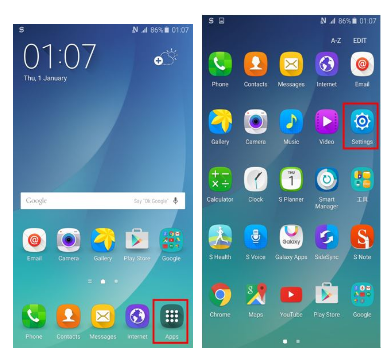
Tap apps and click on the setting icon.
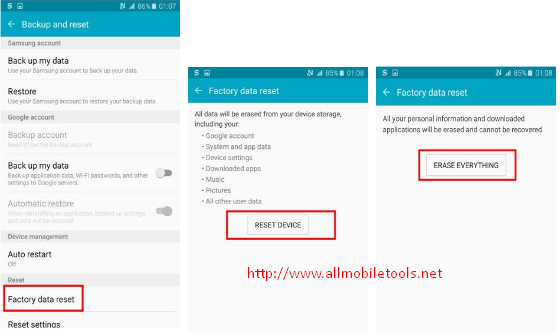
  • In “Setting” Tap “Backup and Reset”.
Tap Backup and Reset
  • Then Tap “Factory Data Reset”.
  • Then “Reset Device”.
  • Then “Erase Everything”.
How To Perform Factory Reset On Android Smart Phones & Tablets?
  • Done.
Guide To Reset Android 5.0 or Below:
  • Tap “Setting” Then click “General” & “Backup and Reset”  and then “Factory Data Reset”.
Factory Reset Android 5.0 or below.
  • “Tap Reset Device” and then click “Delete All”.
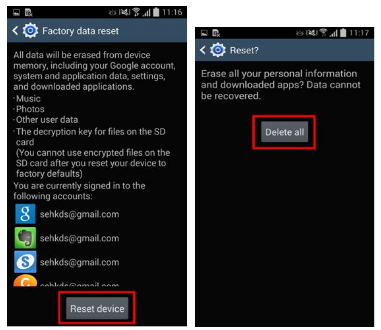
Android 5.0 or below factory Reset.
  • Done.

The post How To Perform Factory Reset On Any Android Smart Phones & Tablets? appeared first on AllMobileTools-Tutorials, Stock Firmware, Tools, USB Drivers.

]]>
https://www.allmobiletools.net/how-to-perform-factory-reset-on-android/feed/ 0