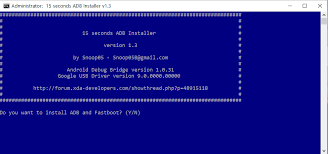
Huawei ADB Drivers: What Are They?
Huawei Android devices can be recognized and communicated with by a computer via the ADB interface thanks to Huawei ADB drivers, which are software components. They serve as a conduit for developers to transfer commands and data between the Huawei device and the computer’s operating system for a variety of purposes. Developers that want to interface with Huawei devices using ADB commands for Android app development, testing, and debugging operations must have ADB drivers.
Why Are ADB Drivers Required?
Developers and Android enthusiasts who want to use ADB commands to communicate with Huawei devices must have Huawei ADB drivers. Huawei ADB drivers are required for the following reasons:
- Android app development: ADB drivers are required for testing and debugging apps on Huawei devices if you are an Android app developer. The development process is expedited by the ability to install, uninstall, and execute programs directly from a computer using ADB commands for Huawei devices.
- Modification and customization: ADB drivers are helpful for Huawei device modification and customization. You may customize Huawei smartphones and improve their operation by using ADB commands to access system files, change settings, and install specialized ROMs or recovery images.
- Debugging and troubleshooting Huawei devices: ADB drivers are crucial for these processes. You can use ADB commands to diagnose and resolve problems with Huawei devices, including resolving boot loops, retrieving deleted files, and finding and resolving software defects.
- Data management: ADB drivers make it possible to effectively handle data on Huawei devices. Using ADB commands makes it simpler to manage your Huawei device from a computer. These instructions can be used to transfer files, backup and restore data, and carry out other data management operations.
Where can I find Huawei ADB drivers?
The method of installing Huawei ADB drivers on a computer is simple. The general steps are as follows:
- Download the most recent Huawei USB drivers for your particular device model and operating system by visiting the official Huawei website or other reliable sources.
- In order to enable USB debugging on a Huawei device, navigate to “Settings” > “Developer settings” > “USB debugging” on your Huawei device. If you can’t see the “Developer options” menu, tap the “Build number” field seven times in “Settings” > “About phone” > “Software information” to make it visible.
- Link Huawei device to PC: Join your Huawei gadget to the computer using a USB cord.
- Install Huawei USB drivers on your computer by running the downloaded installer and then according to the on-screen directions. Throughout the installation procedure, be careful to pick the appropriate operating system and device model.
- Open a command prompt or terminal window on your computer and use the command “adb devices” to confirm the installation of the ADB drivers. If your Huawei device is displayed, the ADB drivers have been successfully installed, and you may now utilize ADB commands with your Huawei device.
Other Huawei Tools
- Huawei Mobile Partner
- Huawei All USB Drivers
- Huawei Flash Tool
- Huawei Multi-Tool
- Huawei Modem Unlocker
- Huawei FRP & ID Bypass Tool
The post Huawei ADB Drivers [Fastboot] Download for Windows 7/8/10/11 [32/64 Bit] appeared first on AllMobileTools-Tutorials, Stock Firmware, Tools, USB Drivers.
]]>Huawei Mobile All USB Drivers free download for Windows PC. If you want to connect your Huawei android device to your computer or laptop then you must have to install the proper USB drivers of your Huawei device on your computer. In this post, we have managed all the USB drivers for Huawei android devices and provided direct download links for free downloading. So if you are interested in downloading the latest USB drivers for Huawei Mobile devices, then click on the download button at the end to start downloading.
Table of contents
- What is Huawei Mobile All USB Drivers?
- Huawei Mobile USB Drivers Supported Windows OS
- Download Huawei Mobile All USB Drivers
- How To Install Huawei Mobile ADB Driver On Windows PC
- How To Install Huawei Qualcomm USB Driver on Windows PC
- How To Install Huawei Android CDC Driver on Windows PC
- How To Install Huawei Android CDC Driver | Video Tutorial
Huawei Mobile USB Drivers Supported Windows OS
Huawei USB Drivers is compatible with all windows versions. These drivers can properly work in Windows XP, Windows Vista, Windows 7, Windows 8, and Windows 10.
Download Huawei Mobile All USB Drivers
| Driver Name | Download Link |
|---|---|
| Huawei Mobile Driver v1.0 | Download Mobile Driver |
| Huawei Mobile CDC Driver | Download CDC Driver |
| Huawei Mobile VCOM Drivers | Download VCOM Driver |
| Huawei Mobile Qualcomm Drivers | Download Qualcomm Driver |
| Huawei Mobile ADB Drivers | Download ADB Driver |
How To Install Huawei Mobile ADB Driver On Windows PC
- Open Device Manager on your PC, then click on the Action button at the top and choose Add Legacy Hardware option from the drop-down menu.
- Click Next and select Install the hardware that I manually select from the list (Advanced) and click Next to continue.
- Now in the next screen tap on the Show All Devices.
- Click Next and tap on Have Disk option.
- Click Browse and specify the driver location which you have downloaded from here.
- Select Android ADB interface and click next to continue setup.
- Finally, click Next to complete the driver installation.
- Done. You have successfully installed Huawei ADB Drivers on your Windows PC.
How To Install Huawei Qualcomm USB Driver on Windows PC
- Download Huawei Qualcomm USB Driver from the above link.
- Run Huawei Qualcomm USB Driver Setup EXE file on your PC after downloading.
- Select the option WWAN DHCP is not used to get IPAddress from the list and click next.
- On the next screen click Next to continue the installation.
- Check I accept the terms in the license agreement box and click next.
- Now tap on the install button to start the installation.
- Finally, click on the Finish button to complete the installation.
How To Install Huawei Android CDC Driver on Windows PC
- Download Huawei Android CDC Driver from the download button given above.
- Open Device Manager on your PC, then click on the Action button at the top and choose Add Legacy Hardware option from the drop-down menu.
- Click Next and select Install the hardware that I manually select from the list (Advanced) and click Next to continue.
- Now in the next screen tap on the Show All Devices.
- Click Next and tap on Have Disk option.
- Click Browse and specify the driver location which you have downloaded from here.
- Select Android Gadget CDC Driver and click next to continue setup.
- Finally, click Next to complete the driver installation.
- Done. You have successfully installed Android Gadget CDC Driver on your Windows PC.
How To Install Huawei Android CDC Driver | Video Tutorial
The procedure of installing the Android CDC driver for all android devices is the same. Watch the video tutorial below to know how to install manually install the android CDC driver on Windows PC.
You May Also Like: Universal ADB Driver for Windows
The post Download Huawei Mobile All USB Drivers (2025) For Windows 7/8/10 appeared first on AllMobileTools-Tutorials, Stock Firmware, Tools, USB Drivers.
]]>