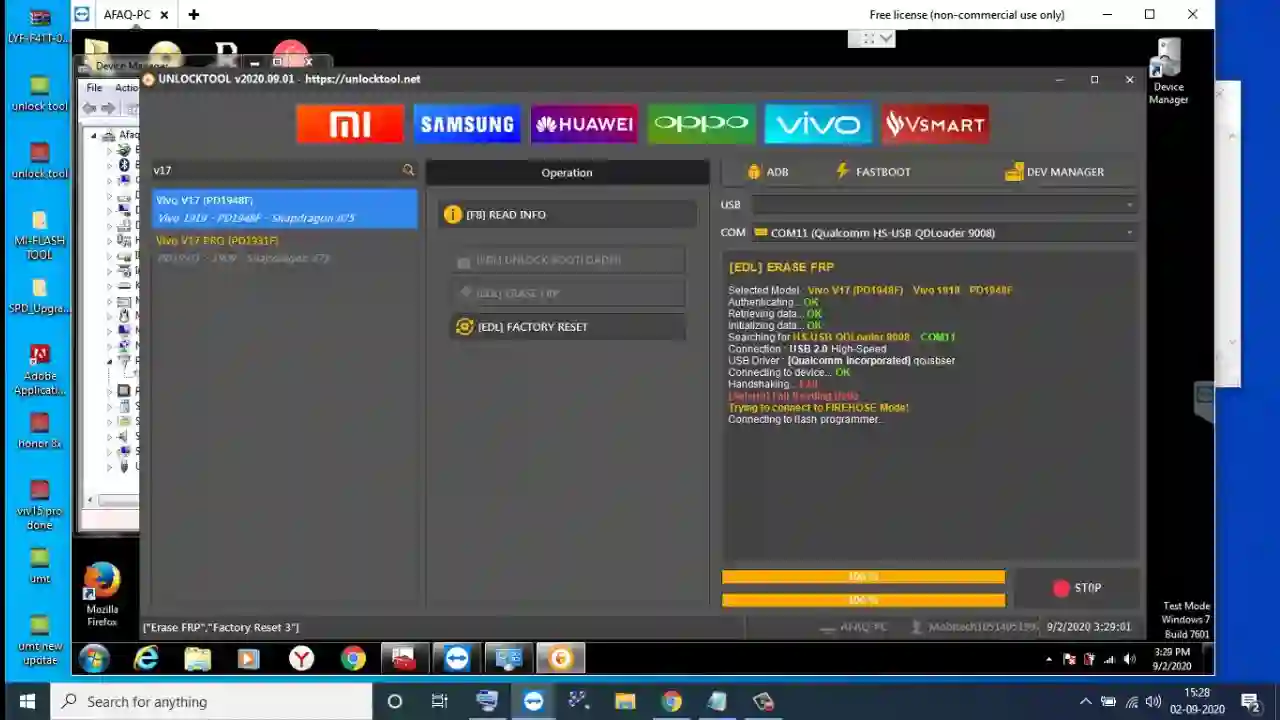
Unlock Tool is a professional mobile servicing program used by technicians to diagnose, flash, reset, and repair supported smartphones. It combines several mobile software operations in one Windows-based interface, reducing the need to install a separate program for every phone brand or chipset.
The software is mainly intended for mobile repair shops, GSM technicians, device refurbishers, and experienced users working on phones they own or have permission to service. It may support operations involving firmware installation, factory resetting, bootloader management, account-related servicing, and software repair, depending on the phone model and security version.
Unlock Tool receives regular updates throughout the year. New releases may add recently launched smartphones, security patch support, updated loaders, chipset improvements, and bug fixes. Users should always check the current version before completing the Unlock Tool Download process.
This guide explains Unlock Tool Setup 2026, system requirements, account activation, driver installation, common setup problems, and important safety practices. It focuses on responsible mobile servicing and authorized device repair.
What Is Unlock Tool?
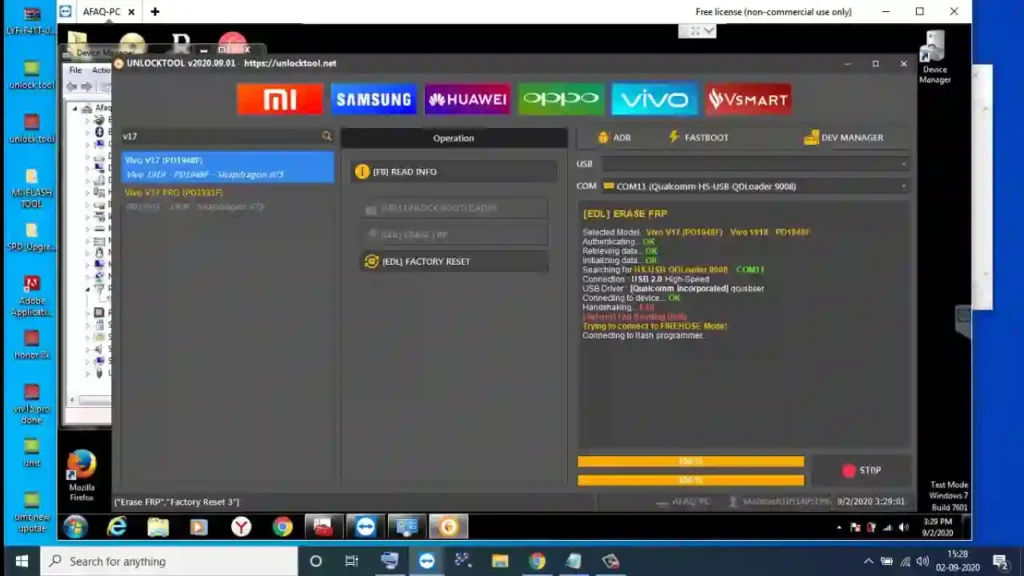
Unlock Tool, also written as UnlockTool, is a paid mobile servicing application developed for Windows computers. It gives technicians access to different tools for working with supported Android phones, chipsets, firmware packages, and system modes.
Instead of supporting only one manufacturer, the software is designed to work with devices from several major mobile brands. The available operations depend on the selected phone model, chipset, Android version, firmware build, bootloader revision, and security patch.
Common Unlock Tool functions may include:
- Firmware flashing
- Factory reset operations
- Software repair
- Device information reading
- Bootloader management
- Supported account servicing
- Screen-lock servicing on supported devices
- FRP-related operations
- Driver management
- Chipset-based servicing
- Emergency mode support
- Test-point mode support
- Supported network and system repairs
The software is updated regularly because smartphone manufacturers continue to introduce new models, chipsets, software versions, and security protections.
A function that works on one phone may not work on another device, even when both models come from the same brand. Technicians should therefore verify exact model support before accepting or starting a repair job.
What Is Unlock Tool Used For?
Unlock Tool brings several mobile repair functions together in one interface. However, the available options change according to the selected phone brand and model.
Firmware Flashing
Firmware flashing replaces or repairs the operating system files installed on a smartphone.
A technician may need to flash firmware when a phone:
- Remains stuck on the startup logo
- Restarts repeatedly
- Cannot complete a system update
- Displays serious operating system errors
- Has damaged system files
- Needs to return to official stock software
- Does not enter the home screen
- Shows software corruption after an update
The firmware package must match the phone’s exact model number, region, storage configuration, processor, and bootloader revision.
Installing an incorrect firmware file may cause:
- Boot failure
- Network problems
- Missing features
- Camera or sensor errors
- Data loss
- Device instability
- Permanent software damage
Unlock Tool can simplify the flashing process for supported devices, but users must still verify the firmware carefully before installation.
Factory Reset and Data Formatting
A factory reset removes user-installed applications, settings, accounts, and personal files from a device. It may be required when preparing an authorized second-hand phone for resale or repairing software problems that cannot be fixed through normal settings.
A factory reset may help when a phone:
- Freezes regularly
- Has serious performance problems
- Cannot open system settings
- Contains corrupted user data
- Needs to be prepared for a new owner
- Is affected by software conflicts
Modern Android phones may ask for the previously linked account after an untrusted factory reset. This security process helps protect lost or stolen devices.
Technicians must verify ownership before performing account-related servicing.
FRP-Related Servicing
FRP stands for Factory Reset Protection. It is an Android security feature designed to protect a phone after an unauthorized reset.
When FRP is active, the device may request the Google account that was previously connected to it. Unlock Tool may provide account-related service functions for selected supported models.
The availability of these functions depends on:
- Phone model
- Android version
- Security patch
- Chipset type
- Firmware build
- Bootloader revision
- Available servicing method
- Server support
FRP-related operations should only be performed for verified device owners. Attempting to remove protection from a lost, stolen, financed, company-managed, or unauthorized phone may be illegal.
Bootloader Operations
The bootloader controls how a smartphone starts and which system software it is allowed to load.
Some repair procedures require bootloader-related operations, such as:
- Reading the bootloader status
- Rebooting into bootloader mode
- Unlocking the bootloader
- Relocking the bootloader
- Repairing supported boot problems
Changing the bootloader may:
- Erase all user data
- Affect secure applications
- Disable banking or payment features
- Change update eligibility
- Affect device warranty
- Increase security risks
- Cause boot failure
- Trigger system integrity warnings
Users should understand the result of each bootloader function before starting it.
Device Information Reading
Before beginning a repair, Unlock Tool may read important device information.
This information can include:
- Model number
- Product name
- Serial information
- Chipset type
- Firmware version
- Android version
- Security patch
- Bootloader state
- Storage details
- Connection mode
- Partition information
- Battery status
Reading device information first helps prevent technicians from choosing the wrong model, firmware, or repair method.
Chipset-Based Servicing
Many mobile repair operations depend on the device’s chipset rather than only its brand name.
Unlock Tool may provide workflows for popular chipset platforms, including:
- MediaTek
- Qualcomm
- Spreadtrum
- Unisoc
Chipset-based servicing can be useful when a phone does not start normally but can still enter a special connection mode.
These modes may include:
- Boot ROM mode
- Preloader mode
- EDL mode
- Download mode
- Fastboot mode
- Recovery mode
- Diagnostic mode
Technicians must install the correct drivers for Windows to recognise the phone in these modes.
Unlock Tool Supported Brands
Unlock Tool is commonly used for servicing Android phones from several manufacturers.
Supported brand categories may include:
- Samsung
- Xiaomi
- Redmi
- POCO
- Oppo
- Realme
- Vivo
- Huawei
- Honor
- Tecno
- Infinix
- Itel
- Nokia
- Motorola
- OnePlus
- Asus
- LG
Support may also be available through chipset-based sections for MediaTek, Qualcomm, Spreadtrum, and Unisoc devices.
However, support for a brand does not mean that every model from that manufacturer can be serviced.
Compatibility may depend on:
- Exact model number
- Regional variant
- Processor
- Storage configuration
- Android version
- Firmware build
- Bootloader revision
- Security patch date
- Required authentication
- Available loader
- Required programmer file
- Device connection mode
Always search for the exact model number inside the software before beginning a repair.
Unlock Tool Download: Important Checks
The Unlock Tool Download process is usually simple, but users should complete several checks before opening the installer.
Check the Latest Version
Unlock Tool receives regular updates. A new release may include:
- Recently launched models
- New security patch support
- Updated firmware functions
- Improved drivers
- New loaders
- Server improvements
- Bug fixes
- Better chipset compatibility
Using an older release may cause:
- Missing models
- Unsupported security patches
- Login problems
- Driver conflicts
- Failed server requests
- Incomplete device detection
- Firmware compatibility errors
Users should compare the installed version with the latest available release before starting a repair.
Download From a Trusted Source
Always obtain the Unlock Tool Setup file from an official or verified source.
Avoid downloads described with terms such as:
- Unlock Tool crack
- Free activated Unlock Tool
- Patched Unlock Tool
- Unlock Tool key generator
- Unlimited free activation
- Offline activation patch
- Premium unlocked version
- Modified Unlock Tool
- Full version without payment
Cracked or modified versions may contain:
- Password-stealing programs
- Remote-access malware
- Cryptocurrency miners
- Hidden advertisements
- Damaged system files
- Browser hijackers
- Customer data-stealing scripts
An unofficial version may also collect workshop account details or interfere with phone firmware.
The installer may be available to download, but a valid account and active subscription are normally required to use licensed functions.
Verify the Downloaded File
Before opening the installer:
- Confirm that the file name matches the expected release.
- Check that it came from a trusted source.
- Scan the file using reliable security software.
- Avoid files shared by unknown social media accounts.
- Do not enter your account password into unofficial loaders.
- Keep Windows security updates enabled.
- Create a system restore point.
- Keep a backup of important workshop files.
Some mobile repair applications may trigger security warnings because they include low-level USB communication files. However, users should investigate every warning instead of ignoring it automatically.
Unlock Tool System Requirements
Unlock Tool is mainly designed for Windows computers. A modern 64-bit version of Windows 10 or Windows 11 is recommended for better security and driver compatibility.
A practical computer setup is shown below.
| Component | Minimum Practical Setup | Recommended Setup |
|---|---|---|
| Operating system | Windows 10 64-bit | Updated Windows 11 64-bit |
| Processor | Dual-core processor | Intel Core i5, Ryzen 5, or better |
| Memory | 4 GB RAM | 8 GB RAM or more |
| Storage | 2 GB available | 20 GB or more for firmware |
| USB connection | Working USB 2.0 port | Direct USB 2.0 or USB 3.0 port |
| Internet | Stable connection | Reliable broadband connection |
| Permissions | Administrator access | Dedicated administrator account |
| Accessories | Data-capable cable | Original or high-quality service cable |
Firmware packages can require several gigabytes of storage. Workshops that service many phone models may need a large internal drive or external storage system.
Internet Connection Requirements
A stable internet connection may be required for:
- Account login
- License verification
- Program updates
- Server-based operations
- Activation checks
- Model database updates
- Firmware downloads
- Authentication services
Avoid starting an important operation using an unstable mobile hotspot. A connection failure during a server-supported process may interrupt the repair.
USB Port and Cable Requirements
Many device detection problems are caused by damaged cables and weak USB ports.
Use:
- A short USB data cable
- A direct computer USB port
- A cable known to transfer files
- A clean phone charging port
- The correct device connection mode
Avoid cheap USB hubs and extended cables. Front-panel desktop ports may also provide a less stable connection than ports located directly on the motherboard.
Unlock Tool Setup 2026: Step-by-Step Installation
The Unlock Tool Setup 2026 process includes preparing Windows, downloading the installer, extracting the files, installing drivers, creating an account, activating a plan, and logging in.
Step 1: Prepare the Computer
Before installing Unlock Tool:
- Complete pending Windows updates.
- Restart the computer.
- Remove damaged or incomplete older installations.
- Check available storage space.
- Close unnecessary applications.
- Create a restore point.
- Confirm that you have administrator access.
- Back up important workshop data.
A dedicated workshop computer is better than a personal computer containing unrelated financial, business, or private files.
Step 2: Download Unlock Tool
Locate the latest trusted Unlock Tool Download file and compare the release number with your existing version.
Save the installer in a clearly organised folder, such as:
Mobile Tools > Unlock Tool > Current Version
Do not mix the newest installer with several older releases. Keeping multiple versions in one folder may cause you to open or install the wrong file.
Step 3: Extract the Archive
The setup file may be provided inside a ZIP or RAR archive.
To extract it:
- Right-click the downloaded archive.
- Select the extraction option.
- Choose a new folder.
- Wait for extraction to finish.
- Open the extracted folder.
- Locate the installer.
- Check that all required files are present.
Do not run the installer directly from inside the compressed archive. Extracting the complete package allows supporting files to load properly.
Step 4: Run the Installer as Administrator
Right-click the setup file and choose Run as administrator.
Follow the installation prompts carefully.
During installation:
- Read each message.
- Choose the default installation folder unless necessary.
- Do not install unrelated bundled programs.
- Do not copy replacement files from unknown websites.
- Keep the installation folder name simple.
- Allow the setup to finish completely.
- Restart Windows if requested.
Running the program with administrator permission may also help it communicate with connected devices and drivers.
Step 5: Install USB Drivers
USB drivers allow Windows and Unlock Tool to communicate with a connected smartphone.
The required driver depends on the phone brand, processor, and connection mode.
Common drivers include:
- Samsung USB driver
- MediaTek USB driver
- Qualcomm HS-USB QDLoader driver
- Spreadtrum driver
- Unisoc driver
- Huawei USB driver
- Android ADB driver
- Fastboot driver
- CDC serial driver
- MediaTek VCOM driver
- Preloader driver
Restart the computer after installing or changing important USB drivers.
Step 6: Create an Account
New users normally need an Unlock Tool account before purchasing activation.
A typical registration process includes:
- Opening the official registration page.
- Entering the required account information.
- Creating a strong password.
- Completing email or account verification.
- Saving the username securely.
- Using the same username when buying activation.
Do not share your password with customers, unknown resellers, or public support groups.
Step 7: Purchase Activation
Unlock Tool normally uses time-based activation plans.
Available options may include:
- Three-month activation
- Six-month activation
- Twelve-month activation
Prices, availability, reseller conditions, and processing times may change. Confirm the current information before making payment.
Before purchasing:
- Enter the correct username.
- Use your registered email address.
- Confirm the activation duration.
- Check the seller’s reputation.
- Save the payment receipt.
- Review the order details.
- Confirm account activation before starting work.
Existing users should usually renew the same account instead of creating a new username.
Step 8: Log In
Open Unlock Tool and enter your registered username and password.
If the login does not work:
- Check the username spelling.
- Re-enter the password.
- Confirm that Caps Lock is disabled.
- Check the internet connection.
- Verify that the activation is active.
- Correct the computer’s date and time.
- Restart the software as administrator.
- Check whether server maintenance is taking place.
- Contact the activation provider if the order is pending.
Never enter your login details into an unofficial bypass program or modified loader.
First-Time Unlock Tool Configuration
After logging in, prepare the program before connecting a customer’s phone.
Update the Software
Check whether a newer release is available.
Updates may provide:
- New phone models
- Updated security support
- Better chipset methods
- Improved loaders
- Connection fixes
- New firmware operations
- Server changes
- Bug fixes
Do not assume that an old video tutorial will work with the latest phone security patch.
Organise Your Files
Create separate folders for:
- Firmware
- Customer backups
- Drivers
- Device logs
- Screenshots
- Loader files
- Work orders
- Program installers
Use the device model and repair date in folder names.
For example:
Samsung_A145F_2026-08-04
This system prevents firmware packages, customer files, and repair logs from becoming mixed.
Test Device Detection
Connect a supported phone and check whether Windows recognises it correctly.
Device Manager may display entries such as:
- Android Device
- ADB Interface
- Fastboot Interface
- Samsung Mobile USB
- MediaTek USB Port
- Qualcomm HS-USB QDLoader 9008
- Spreadtrum Port
- Unisoc Port
A yellow warning symbol usually means that a driver is missing, damaged, or incompatible.
Read Device Information
Use the least invasive operation before performing a reset, format, flash, or bootloader change.
Reading the device information can confirm:
- Exact model
- Chipset
- Firmware build
- Android version
- Security patch
- Bootloader revision
- Storage configuration
- Connection mode
Do not begin a destructive operation until the phone’s identity has been confirmed.
Professional Unlock Tool Workflow
A professional repair process should follow a consistent system. Randomly clicking different functions can cause data loss or serious software damage.
Verify Device Ownership
Before servicing a protected phone, request proof that the customer owns or is authorised to repair it.
Possible proof may include:
- Purchase receipt
- Matching identification
- Carrier account information
- Original device box
- Company authorisation
- Inventory records
- Written customer consent
Refuse devices with:
- Removed serial labels
- Conflicting ownership stories
- Active lost-device reports
- Evidence of theft
- Unusual hardware tampering
- Missing business authorisation
Record the Device Condition
Before connecting the phone:
- Photograph its physical condition.
- Record the exact model number.
- Note whether it powers on.
- Check the display and body.
- Inspect the charging port.
- Record existing damage.
- Write down the requested service.
- Explain the risk of data loss.
- Obtain customer permission.
This process protects the technician and the customer.
Back Up Important Data
Some Unlock Tool operations can erase user data permanently.
Back up available information before:
- Factory resetting
- Formatting storage
- Flashing firmware
- Changing the bootloader
- Repairing partitions
- Downgrading software
A backup may include:
- Photos
- Videos
- Documents
- Contacts
- Internal storage
- Application information
- Device configuration
- Important partition data
Only copy the information required for the repair. Customer privacy should remain a priority.
Charge the Battery
The phone should have enough battery power to complete the repair.
Where possible:
- Charge the battery above 50%.
- Use a reliable charging cable.
- Connect laptops to power.
- Use a power backup for desktop computers.
- Avoid flashing during power instability.
A device shutting down during firmware installation may become difficult to recover.
Select the Exact Model
Two phones with the same public product name may use different processors or firmware in different regions.
Verify:
- Full model code
- Chipset
- Region
- Storage version
- Bootloader revision
- Firmware build
- Security patch
Do not choose a model simply because the phone looks similar.
Save Operation Logs
Record important repair information, including:
- Selected model
- Unlock Tool version
- Firmware version
- Operation performed
- Date and time
- Final result
- Error message
- Technician name
Logs make future troubleshooting easier and provide a useful service record.
Common Unlock Tool Problems and Solutions
Unlock Tool Does Not Open
Possible causes include:
- Incomplete file extraction
- Missing program files
- Blocked administrator permissions
- Corrupted download
- Outdated Windows components
- Security software quarantine
- Conflicting old installation
Try the following:
- Delete the incomplete installation.
- Download the file again.
- Extract it into a new folder.
- Restart Windows.
- Run the installer as administrator.
- Check security software notifications.
- Install pending Windows updates.
Do not download random replacement DLL files. Unofficial DLL websites may provide infected or incompatible files.
Login Failed
A login error may result from:
- Incorrect username
- Incorrect password
- Expired activation
- Pending activation
- Server maintenance
- Firewall restrictions
- Incorrect computer time
- Unstable internet connection
- Too many login attempts
Confirm the account status before purchasing another activation.
Phone Is Not Detected
Try these checks:
- Replace the USB cable.
- Use another direct USB port.
- Clean the phone’s charging port.
- Reinstall the correct driver.
- Restart the computer.
- Enter the required phone mode.
- Close other mobile repair programs.
- Check Device Manager.
- Confirm the selected model.
- Test the phone on another computer.
Other flashing programs, phone suites, or ADB utilities may take control of the same communication port.
Qualcomm 9008 Port Does Not Appear
A Qualcomm device in emergency download mode may appear as a Qualcomm HS-USB QDLoader 9008 port.
If it does not appear:
- Confirm that the phone uses a Qualcomm processor.
- Install the correct Qualcomm driver.
- Replace the USB cable.
- Try another USB port.
- Check Device Manager.
- Confirm the required connection method.
- Verify that the device has entered EDL mode.
Opening a phone or using a test point can damage the device. These methods should only be used by trained technicians with permission.
MediaTek Connection Disconnects
MediaTek preloader connections may appear for only a few seconds.
Possible solutions include:
- Installing the correct VCOM driver
- Installing updated MediaTek drivers
- Using the required button combination
- Reconnecting the powered-off phone
- Trying another data cable
- Removing conflicting drivers
- Selecting the correct connection method
- Following the exact model instructions
Do not begin a risky writing operation until the USB connection is stable.
Firmware Flashing Fails
Common causes include:
- Incorrect firmware
- Damaged archive
- Low computer storage
- Unstable USB connection
- Low phone battery
- Unsupported security version
- Incorrect model selection
- Missing loader file
- Server problem
- Damaged device storage
Read the complete error message before repeating the process.
Repeatedly installing incorrect firmware can make the phone more difficult to recover.
Driver Signature Error
Some older USB drivers may not install normally on newer Windows versions.
Use current and properly signed drivers whenever possible.
Avoid permanently weakening Windows security settings to install unknown drivers. A dedicated repair computer and trusted driver package provide a safer working environment.
Unlock Tool Freezes During an Operation
Do not immediately disconnect the phone.
First:
- Check whether the progress percentage is changing.
- Read the operation log.
- Check internet activity.
- Confirm that the phone remains detected.
- Allow enough time for the selected process.
- Review the error information.
- Follow the correct recovery method.
Disconnecting a device during a write process may leave it unable to start.
Advantages of Unlock Tool
Multi-Brand Support
Technicians can work with several mobile brands from one interface instead of switching between many separate programs.
Regular Updates
Updates may add new models, chipsets, security patches, loaders, and servicing functions.
Centralised Interface
Account login, model selection, device logs, firmware functions, and chipset operations are available in one place.
Useful for Repair Shops
A repair shop working on different Android devices may benefit from a multi-brand servicing application.
Driver Support
Driver packages can help technicians prepare Windows for different Qualcomm, MediaTek, Spreadtrum, Unisoc, Huawei, and Android connection modes.
Model-Based Operations
Selecting a specific model can make it easier to identify available repair functions and compatible connection methods.
Limitations of Unlock Tool
It Requires Activation
The setup file may be downloadable, but licensed features normally require a paid activation plan.
Support Is Model-Specific
A supported manufacturer does not guarantee compatibility with every phone, firmware version, or security patch.
Data Loss Can Occur
Formatting, factory resetting, flashing, and bootloader operations may permanently erase personal data.
Technical Experience Is Required
Firmware selection, emergency mode servicing, partition repair, and hardware test points are not suitable for inexperienced users.
Some Features Depend on Servers
Certain operations may require an active internet connection, account verification, or available service servers.
Compatibility Can Change
A method shown in an older tutorial may not work after a phone receives a newer security patch.
Who Should Use Unlock Tool?
Unlock Tool is best suited to:
- Professional mobile repair technicians
- GSM servicing shops
- Device refurbishing businesses
- Authorised service providers
- Experienced Android technicians
- Businesses managing company-owned devices
It may not be suitable for someone who has never:
- Installed USB drivers
- Used Device Manager
- Identified a chipset
- Selected firmware
- Entered Fastboot or EDL mode
- Recovered a failed flash
- Backed up phone partitions
Beginners should first learn the basics of:
- Android recovery mode
- Download mode
- ADB
- Fastboot
- USB driver installation
- Firmware naming
- Bootloader versions
- Data backup
- Mobile repair safety
Legal and Ethical Use
Unlock Tool should only be used on devices you own or have clear permission to service.
Do not use it to:
- Access a stolen phone
- Remove protection from a found device
- Bypass company device management
- Avoid carrier financing obligations
- Change device identifiers unlawfully
- Access another person’s private data
- Hide the history of a stolen phone
- Resell a protected device without permission
Repair businesses should maintain:
- Customer records
- Proof of ownership
- Written consent
- Repair logs
- A privacy policy
- Secure data handling procedures
Technical ability does not provide legal permission.
Frequently Asked Questions
Is Unlock Tool free?
The setup file may be available without payment, but the main servicing functions normally require paid activation. Subscription periods may include three-month, six-month, and twelve-month plans.
What is the latest Unlock Tool version in 2026?
Unlock Tool receives regular releases during 2026. Users should check the current official version before downloading because newer builds may be published after this guide.
Does Unlock Tool work on Windows 11?
Yes, Unlock Tool is commonly used on Windows 11. A 64-bit system with updated drivers, sufficient storage, administrator access, and a stable internet connection is recommended.
Can Unlock Tool run on Windows 10?
Yes, many users operate it on 64-bit Windows 10 computers. Keep Windows updated and install the correct device drivers.
Does Unlock Tool work on macOS?
Unlock Tool is mainly developed for Windows. Mac users generally need a separate Windows computer. Virtual machines may not provide stable access to low-level USB connection modes.
Is Unlock Tool safe?
The trusted setup can be used as a professional servicing program. The main risks come from cracked versions, unknown downloads, incorrect firmware, unreliable drivers, unauthorized use, and inexperienced operation.
Why is my phone not connecting?
Common causes include a charging-only cable, missing drivers, a damaged USB port, incorrect connection mode, unstable USB communication, or incorrect model selection.
Do I need drivers for Unlock Tool?
Yes. The required driver depends on the phone, chipset, and connection mode. Common driver categories include Qualcomm, MediaTek, Samsung, Spreadtrum, Unisoc, ADB, and Fastboot.
Can Unlock Tool remove an FRP lock?
Unlock Tool may offer account-related servicing functions for selected supported devices. Compatibility depends on the exact phone model, Android version, security patch, chipset, and current servicing method. These features must only be used for verified device owners.
Can Unlock Tool recover deleted data?
Unlock Tool should not be treated as a guaranteed data recovery program. Many repair functions erase information rather than recover it. Back up accessible data before performing resets, formatting, flashing, or bootloader changes.
Can one account be used on multiple computers?
Account and computer-switching rules may depend on the current licensing policy. Users should check the latest account conditions before changing computers or sharing workshop access.
Should I download an older version?
Use the newest stable version unless a verified support instruction requires an older release. Older versions may lack recent models, security patch support, and server communication updates.
Why does antivirus software show a warning?
Mobile repair software may include low-level device communication components that trigger security alerts. However, a warning can also indicate an unsafe file. Always confirm the download source and scan the file before opening it.
Conclusion
Unlock Tool is a multi-brand mobile servicing application for technicians who need firmware flashing, reset, bootloader, chipset, and software repair functions in one Windows interface.
A successful Unlock Tool Setup 2026 requires more than downloading and opening the installer. Users need a stable Windows computer, valid activation, correct USB drivers, reliable cables, suitable firmware files, and a clear understanding of the device being repaired.
Before every operation, verify the exact model, check compatibility, back up available data, confirm ownership, and read the software log carefully. Avoid cracked editions and unknown downloads, even when they promise free activation.
Used responsibly, Unlock Tool can support an efficient mobile repair workflow. Used without permission or technical knowledge, it may lead to data loss, damaged devices, security problems, and legal consequences.