Table of Contents
What is MTK Auth Bypass Tool?
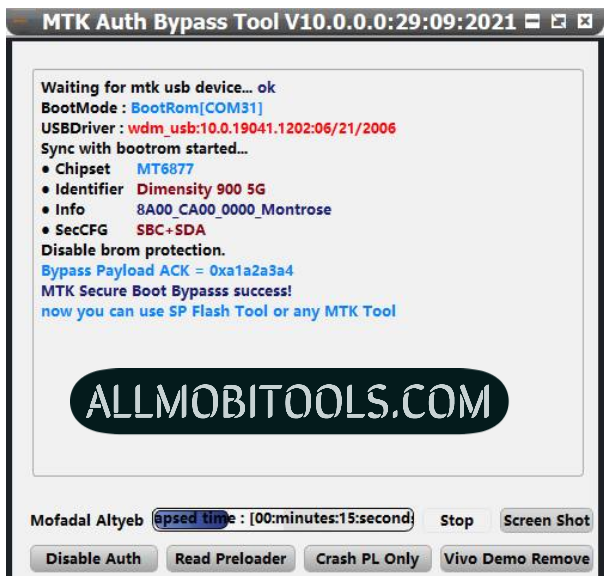
The MTK Auth Bypass Tool is a free Windows program that works to remove the Authentic Security from your device. You will need to have a rooted device or the CM2 Dongle to do this. The MTK Bypass Tool is designed to work with any unlock tool that supports MTK chipsets. The tool detects the device’s brand and model, so it’s very easy to use.
The MTK Auth Bypass Tool works well with Android devices with MTK chipsets. This tool is completely free to download and works with many MTK chipsets. Once installed, simply follow the instructions on the software. The MTK Authentication Bypass Tool can bypass the Secure Boot protection of MTK-based smartphones and tablets. In most cases, you can use the tool with any unlocking tool for your MTK-powered device.
MTK Auth Bypass Tool allows users to bypass the SLA protection on newer models of the device. It can be used with any model of the MT6877, MT6883, or MT6885 chipset. MT6735 and MT6753 can also be unlocked with this tool. If you have an MTK phone, you should install the MTK Authentication Bypass Tool. It will work for most phones.
Changelog
- MT6781 MediaTek (Helio G96).
- MT6755
- MT6750
- MT6750M
- MT6750T
- MT6750S
- MT6757
- MT6761
- MT6762
- MT3369
- MT8766B
- MT6763
- MT6765
- MT6768
- MT6771
- MT6779
- MT6753
- MT6768(2021) MediaTek (Helio G88).
- MT6768(2021) *new
- MT6739
- MT6877 *new
- MT6883 *new
- MT6885 *new
- MT6889 *new
- MT6833
- MT6853
- MT6853V
- MT6873
- MT6891Z
- MT6893
- MT8765WB
- MT8385
- MT8183
- MT8666
- MT6753
- MT6797
- MT8127
- MT8163
- MT8516
- MT8173
- MT8695
- MT6873
- MT6799
- MT8590 MT6572
- MT6580
- MT6582
- MT6592
- MT6595
- MT6735
- MT6737
- MT6785
- MT6795
Supported MTK Chipsets
added auth bypass (SLA/DAA) support for:
- MT6877 MediaTek (Dimensity 900 5G).
- MT6877V/ZA MediaTek (Density 900 5G).
- MT6877V/NZA MediaTek (Dimensity 900 5G).
- MT6877V/TZA MediaTek (Dimensity 900 5G).
- MT6877V/TNZA MediaTek (Dimensity 900 5G).
- MT6883 (Dimensity 800)
- MT6883V/ZA (Dimensity 800)
- MT6883Z (Dimensity 1000C)
- MT6885 (Dimensity 1000L)
- MT6885Z (Dimensity 1000L)
- MT6889 (Dimensity 1000)
- MT6889Z (Dimensity 1000+)
- MT6890 (T750 5G-integrated SoC)
- MT6880 (Milestone Silver)
Download the MTK Auth Bypass Tool Latest Version
The post MTK Auth Bypass Tool Download Latest 2025 [Updated] appeared first on AllMobileTools-Tutorials, Stock Firmware, Tools, USB Drivers.
]]>Table of Contents
You May Also Like: MTK Droid Tools Latest Version
SP Meta Tool is working fine on all MTK devices. It is also compatible with all Windows versions. Just download the tool from the link and install it on your computer to get started.
Features Of SP Meta Tool
- Flash & Repair IMEI (MediaTek). During the IMEI repairing process on MTK devices, it will ask you for the database file that came along with the stock firmware.
- Easily backup and restore IMEI from any MTK device.
- Repair NVRAM on any MTK feature phone, smartphone, or tablet.
- Please keep in mind. This tool is only supported for MediaTek Android devices. So don’t try this tool on any other chipset-based Android devices.
So these are the cool features of SP Meta Tool’s latest version. If you want to download the SP Meta Tool updated version installer file. Just one click on the link below to start to download the tool.
Download the SP Meta Tool’s Latest Version
Download SP Meta Tool v10.1816.0.01
The post Download SP Meta Tool Latest Version 2025 [All Versions] appeared first on AllMobileTools-Tutorials, Stock Firmware, Tools, USB Drivers.
]]>Table of Contents
MTK All USB Drivers?
MTK All USB Drivers are MediaTek-specific USB drivers. MediaTek, a Taiwanese semiconductor manufacturer, is known for making economical but powerful chipsets for smartphones, tablets, and other electronics. MTK All USB Drivers allow MTK-powered devices to communicate with computers.
Why MTK All USB Drivers Matter?
Device Connectivity: MTK Connectivity MTK devices can connect to computers over USB with all USB Drivers. Transferring files, syncing data, or utilizing your smartphone as a modem for your PC requires this connection.
Firmware flashing updates or reinstalls the device’s software. MTK All USB Drivers help the computer recognize the device in a firmware update or flashing mode, providing a secure and error-free installation.
Data Transfer: MTK All USB Drivers make data transfer fast and dependable, whether you’re backing up or transferring files. These drivers provide smooth file transfers.
Development and Debugging: MTK developers and fans need MTK All USB Drivers. Developers can test and troubleshoot apps, run debugging tools, and do other development tasks with these drivers.
Installing MTK All USB Drivers?
Installing MTK All USB Drivers is simple. Installation instructions:
- Download Drivers: Download the MTK All USB Drivers for your device and operating system from MediaTek’s website or other trusted sources.
- After downloading the drivers, use WinRAR or 7-Zip to extract them. This creates the driver files folder.
- Enable USB Debugging: In MTK device settings, find Developer Options. Optionally enable USB debugging. This lets the computer recognize your device.
- Connect your MTK gadget to the PC via USB. Check the cable for data transfer.
- Install Drivers: Open the extracted folder and find the driver installation file (usually.exe). Double-click the download to start the installation wizard. Install drivers using on-screen instructions.
- Restart the Computer: After installing the drivers, restart your computer to guarantee proper configuration.
- Test the Connection: After restarting your computer, connect your MTK device via USB. If the connection works, the computer will recognize your device and let you transfer data or flash firmware.
MTK USB Driver Supported Windows OS
- Windows XP
- Windows Vista
- Windows 7 (32 Bit & 64 Bit)
- Windows 8 (32 Bit & 64 Bit)
- Windows 10 (32 Bit & 64 Bit)
More MTK Tools
Conclusion
MTK-powered devices require MTK All USB Drivers. They facilitate data transfer, firmware flashing, connectivity, and development. Following the installation procedures above will ensure that your MTK gadget works.
The post MTK All USB Drivers Download 2025 for Windows 7/8/10 [32/64 Bit] appeared first on AllMobileTools-Tutorials, Stock Firmware, Tools, USB Drivers.
]]>Do you have an MTK based smartphone, and want to get rid of the FRP lock of the phone, haunting you down, and do not know how to get it unlocked? Though, the FRP lock of the phone was developed to provide safety to the data after getting the phone lost. But, more than often, this lock hurdle you in getting the factory data to reset.
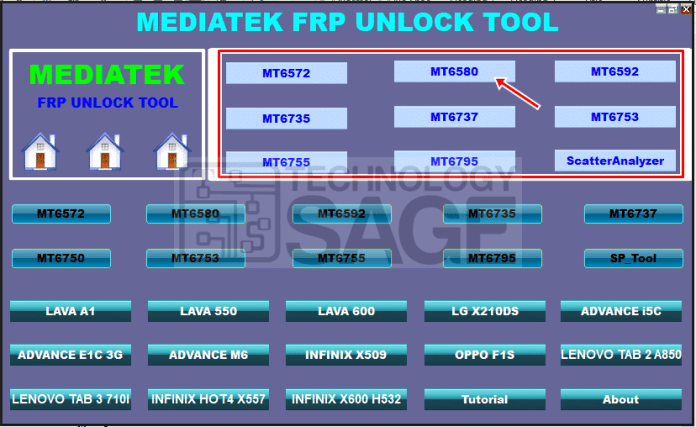
And you have to visit the service providers, to unlock the FRP lock. But, now, you can have the tool, MTK FRP Unlock Tool. By using the tool you can remove the FRP lock, with just a couple of clicks.
Table of contents
Download MTK FRP Unlock Tool from the given download link, and install it on your Windows computer.
What is FRP lock?
FRP lock was introduced the very first time on Android Lollipop 5.0, and this term FRP lock is very popular nowadays, as most of the smartphones now are of Android 5.0 and higher version.
The lock helps the user, in this case, if the phone gets lost. If FRP locks are enabled, and the user wants to restore the phone with the default settings, this FRP lock demands the most recent use of the Google account.
In this case, you will have to provide the latest Google account details and password.
Otherwise, you will get the action completed. Indirectly, the feature was developed to help the users, but unfortunately, this can be bypassed.
With just a simple tool, what I have mentioned here, you can bypass any FRP lock of the MTK based smartphone. Beware, the tool is only specific to MTK phones, and any other phone may not be entertained by the facility.
How to use MTK FRP Unlock Tool?
The use of this tool is pretty simple, just follow what I am going to mention here.
First, you need to download MTK FRP Unlock Tool on your computer; this software can only be installed on a Windows computers.
Second, you need to have the proper USB driver set up on your computer, as without the proper drivers, the MTK smartphone may not be recognized, thus you will not unlock the FRP lock.
Also Check: Qualcomm FRP Unlock Tool
And now, if you have installed the tool, pick a USB data cable, and connect one side of the data cable with the MTK based smartphone, and the other side with the computer.
And tap on the FRP lock option
It will provide you the option to unlock the phone or bypass the FRP lock of the phone.
Remember, the tool got other features like removing the phone’s lock, Pattern lock, or Pin lock. And, if you got any of the mentioned issues to get the right use of the tool thereby
Features of MTK FRP Unlock Tool:
- FRP unlock tool can help you in removing the factory reset protection lock on your MTK based CPU phone. Get the arrangements what I have narrated, and follow the instructions.
- Get the phone unlocked with a couple of clicks
- Can help you in removing the FRP lock of MTK based phones.
- Simple and clean interface
- Can also help you in removing the Pattern lock, SIM lock, or PIN lock
Download MTK FRP unlock tool from the given download link and get your job done.
Download MTK FRP Unlock Tool 2025
| MTK_FRP_Bypass_Tool | Download MTK FRP Bypass Tool |
The post MTK FRP Bypass Tool Latest Version (2025) Free Download – New MTK FRP Unlock Tool appeared first on AllMobileTools-Tutorials, Stock Firmware, Tools, USB Drivers.
]]>So, in the previous article, we elaborate on the entire process of flashing MediaTek Devices using the SP flash tool. Hope you would have liked it, in that article the part which was incomplete, today is going to complete, in this article.
MediaTek USB Vcom Drivers are the most important part to connect a mobile phone to the SP flash tool or smartphone flash tool. To flash a mobile phone, you always need a strong USB driver which can help you in connecting the phone in a better way. That is the reason; the MediaTek USB Vcom Drivers does have much importance.
So, before flashing the phone via the SP flash tool, you need to take care of every step, like checking the USB drivers.
If you already have installed, MediaTek USB Vcom Drivers on your PC, and still your mobile phone is not connecting to the computer. You should check that driver, check whether it is an old version or new. If that is the old version, you need to update that driver.
You can manually update the driver, just tap the driver by visiting the Device manager in your control panel, and right-click over the MediaTek USB Vcom Drivers, there will be the option of updating the driver, click that option, and select manual update.
When you will click the manual update button, you will see it will browse you to the place where you have already downloaded the driver. Select the driver and open it, within some seconds your driver will be updated. But, before connecting the computer to the MediaTek device for flashing with the custom or stock ROM, restart it once. Because, restarting the computer, enable software modification.
Also Check: MTK SP Flash Tool Latest Version
Now, you are about to connect the MediaTek devices to your computer, and there will be no recognition error for sure. You can freely and without of any disturbance can use your phone and flash it.
I have already written the entire process of flashing a phone with custom and stock ROM. The core point of that process is after connecting the phone, and after downloading the scatter flashing files turn off your mobile phone completely. And then press the combination of keys, power button+ volume down and home button, it will take your phone to a download mode. In this way, the download mode will make you a flash phone.
So, you can download MediaTek USB Vcom Drivers from the link below. We already have given a download link; you can tap the download button to get the file. If the link is not working or showing some errors, you can comment down in the section.
Supported Windows OS
- Windows XP
- Windows Vista
- Windows 7 32 Bit & 64 Bit
- Windows 8 32 Bit & 64 Bit
- Windows 10 32 Bit & 64 Bit
Download MTK (MediaTek) MT65xx Preloader USB VCOM Driver
File Details:
| File Name | MT65xx_USB_VCOM_DRIVERS_by_allmobiletools.net.zip |
| File Size | 401 KB |
| Developer | Unknown |
| License | Freeware |
The post Download MTK MT65xx Preloader USB VCOM Drivers for Windows 7/8/10 appeared first on AllMobileTools-Tutorials, Stock Firmware, Tools, USB Drivers.
]]>MTK iMEi SN Write Tool is a tool from Mediatek which allow you to write iMEi on MTK based android phones and tablets. By using this amazing tool you can easily write imei on your android device within a minute. Its very easy to use. No need of any professional skills to use this tool. Anyone can download the tool from the link and use it easily without having any deep knowledge about it. Just click on the link provided below to Download MTK imei SN Write Tool latest version for free.
Today in this article we have managed the direct download link of iMEi SN Write Tool latest version. If you want to download the latest version of this tool, just click on the link given at the bottom.
You May Also Like: SP Flash Tool Latest Version
Before downloading and installing MTK iMEi SN Write Tool latest version on your Windows PC, lets have a look about its cool features which are introduced in this latest version.
Features Of MTK imei SN Writer Tool
- Ability to write multiple or single iMEi.
- The latest version of this tool support for different write options.
- Database file required.
- Easily remove iMEi Lock.
- It support for multiple devices.
- Easily write iMEi on all Mediatek android smartphone and tablets.
Download MTK imei SN Write Tool All Versions
The post Download MTK imei Sn Write Tool 2025 (All Versions) appeared first on AllMobileTools-Tutorials, Stock Firmware, Tools, USB Drivers.
]]>These drivers are supported to all MediaTek (MTK) CPUs like MT6235, MT6516, MT6571, MT6513, MT6572, MT6572M, MT6573, MT6575, MT6515, MT6575M, MT6577T, MT6577, MT6517T, MT6517, MT6589M, MT6589, MT6589T, MT6588, MT6582M, and MT6582.
Why You Need To Install USB Drivers On Your Computer?
USB Drivers helps you computer to recognize your device. If you want to flash you MTK android device through SP flash tool but your computer is not detecting your device. Then you need to install proper drivers for your device.
You May Also Like: MTK FRP Unlock Tool
MediaTek (MTK) Drivers Supported Windows OS
- Windows XP
- Windows Vista
- Windows 98
- Windows 7
- Windows 8
- Windows 8.1
- Windows 10
Download MTK Driver Auto Installer
Download MTK All USB Drivers
The post Download MTK (MediaTek) Driver Auto Installer (2025) for Windows 7/9/10 appeared first on AllMobileTools-Tutorials, Stock Firmware, Tools, USB Drivers.
]]>You May Also Like: MTK SP Flash Tool Latest Version
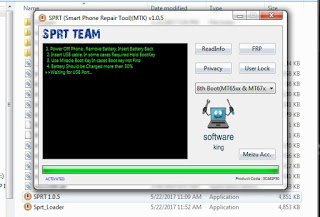
Features Of SPRT Tool
- Remove/bypass/unlock FRP (MTK)
- Remove User Lock (MTK)
- Privacy (MTK)
- Read Info (MTK)
How To Use SPRT (Smart Phone Repair Tool)?
- Download SPRT Tool from link given.
- If you installed antivirus software on your computer, then disable it first.
- Extract SPRT Tool.
- When you extract SPRT Tool you get two folders 1> SPRT Crack Tool 2> Activate Key.
- Open SPRT Crack Tool folder and run SPRT loader.
- Click on the activate option and paste activation key there.
- Done.
Download SPRT All MTK FRP Unlock Tool
The post Download SPRT (MTK FRP Unlock Tool) v1.0.5 Latest Version appeared first on AllMobileTools-Tutorials, Stock Firmware, Tools, USB Drivers.
]]>So, in the previous article, we elaborate the entire process of flashing of a MediaTek Devices using SP flash too. Hope you would have liked it, in that article the part which was incomplete, today is going to complete, in this article.
MediaTek USB Vcom Drivers are the most important part to connect a mobile phone to the SP flash tool or smartphone flash tool. To flash a mobile phone, you always need a strong USB driver which can help you in connecting the phone in a better way. That is the reason; the MediaTek USB Vcom Drivers does have much importance.
So, before flashing the phone via SP flash tool, you need to take care of every step, like checking the USB drivers.
If you already have installed, MediaTek USB Vcom Drivers on your PC, and still your mobile phone is not connecting to the computer. You should check that driver, check either it is old version or new. If that is the old version, you need to update that driver.
You can manually update the driver, just tap the driver by visiting the Device manager in your control panel, and right click over the MediaTek USB Vcom Drivers, there will be option of updating driver, click that option, and select manual update.
When you will click the manual update button, you will see it will browse you to the place where you have already downloaded the driver. Select the driver and open it, within some seconds your driver will be update. But, before connecting the computer to the MediaTek device for flashing with the custom or stock ROM, restart it once. Because, restarting of the computer, enable the software modification.
Now, you are about to connect the MediaTek devices to your computer, and there will be no recognition error for sure. You can freely and without of any disturbance can use your phone and flash it.
I have already written the entire process of flashing a phone with custom and stock ROM. The core point of that process is after connecting the phone, and after downloading the scatter flashing files, turns off your mobile phone completely. And then press the combination of keys, power button+ volume down and home button, it will take your phone to a download mode. In this way, the download mode will make you a flash phone.
So, you can download MediaTek USB Vcom Drivers from the link below. We already have given a download link; you can tap the download button to get the file. If the link is not working or showing some errors, you can comment down in the section.
- Download MediaTek USB VCOM Drivers
The post Download Latest MediaTek USB VCOM Drivers For Windows XP/Vista/7/8/10 appeared first on AllMobileTools-Tutorials, Stock Firmware, Tools, USB Drivers.
]]>